
Dual Boot Mac OS X and Linux Mint 9 on a MacBook Pro 5,1
Posted: 2010-06-09 in How To, Unix GeekeryTags: How To, Linux, MacBook Pro, Mint
WARNING: Extreme Geek-Alert!
I’ve been dual-booting Mac OS X and Ubuntu Linux for a while. Recently the upgrade from Ubuntu 9.10 to 10.04 failed. It failed so bad that my computer was unbootable. During the install process, Ubuntu loaded the boot loader to my Mac OS X partition causing the Mac and Ubuntu partitions to overlap. After trying several unsuccessful “fixes” I had to resort to the nuclear option. I formatted the internal hard drive and cloned from one of my two back-ups.
I was going to do a fresh install of Ubuntu 10.04 but decided to try out a different flavor of Linux. The one I chose was Linux Mint. It’s basically Ubuntu but looks a lot nicer (IMHO).
The Mac Installation information in the Ubuntu Community is not very well maintained or updated for Mac specific installs. I decided I would write a post that outlines exactly what I did to get Linux Mint and Mac OS X working on my MacBook Pro 5,1. I imagine that this would also work for Ubuntu as well.
Below is the exact process I used to get a successful dual-boot. I hope this helps you.
Normal disclaimer: I am not a computer scientist. I am an amateur and a hacker. Everything I’ve learned is from trial and error, a lot of error.
PREPARATION:
1. Backup your system by making a bootable clone of your hard drive. I use SuperDuper. Carbon Copy Cloner is also excellent and FREE.
2. Boot from your backup to ensure it is working properly.
3. Make another backup of your system.
4. Boot from your second backup to ensure it is working properly.
5. VERIFY YOU HAVE STEPS 1-4 COMPLETE. I’ve done dual-boot set ups a few times. The nuclear option (formatting your hard drive and cloning from a back-up) is often required. If you value your data, make a back-up…or two.
6. Connect to the internet via Ethernet. You’ll need to have an ethernet connection to update your hardwire drivers. Additionally during the install, if you have an internet connection, the installer will download and install a few other packages.
INSTALLATION:
1. Download the Linux Mint 9 dmg and burn it to a DVD-R. I used this one. 32-bit i386.
2. Verify the MD5 Checksum. Open a terminal window and enter the following command:
MD5 /Users/yourusername/Downloads/linuxmint-9-gnome-dvd-i386.iso
Wait a minute…and the output will reveal the following:
MD5 (/Users/yourusername/Downloads/linuxmint-9-gnome-dvd-i386.iso) = 4d96965a00135a00f7eb4602a8f4b0f1
If you downloaded the .iso to your Downloads folder change “yourusername” to your user name and the command will output a string of numbers and letters. It should match the MD5 checksum on the download page. If they match, continue. If not, re-download until the MD5 checksum matches. The MD5 checksum MUST match. If it doesn’t either the code has been altered or you had a bad download.
3. Use Disk Utility to burn the .iso to a DVD-R. I used the default settings.
4. Download and install rEFIt.
5. Reboot your computer TWICE for rEFIt to take effect. you will know it is installed correctly when you see the rEFIt menu upon initial startup.

6. Repartition your disk using Disk Utility. I created 30GB of Free Space. Most websites say to use Bootcamp Assistant. I used Disk Utility and it worked fine. Click the “+” sign, change the format in the drop down from HFS+ journaled to Free Space. Hit apply.
7. Insert the Linux Mint LiveDVD that you just burned into your DVD drive. Reboot while holding down the “C” key to boot from the Linux Mint DVD.
8. Open the GParted application. Create two partitions. Your Linux partition formatted as ext4 and the swap partition. I created my linux partition so that 4096MiB of free space was left for my swap partition. UNCHECK “Round to cylinders” so that you have no free space between partitions. Next, add the final partition. Ensure it is formatted as “Linux-Swap.” Hit “apply” to make the changes. You should now have four partitions.
/dev/sda1 EFI
/dev/sda2 MacOSX
/dev/sda3 Linux
/dev/sda4 Swap
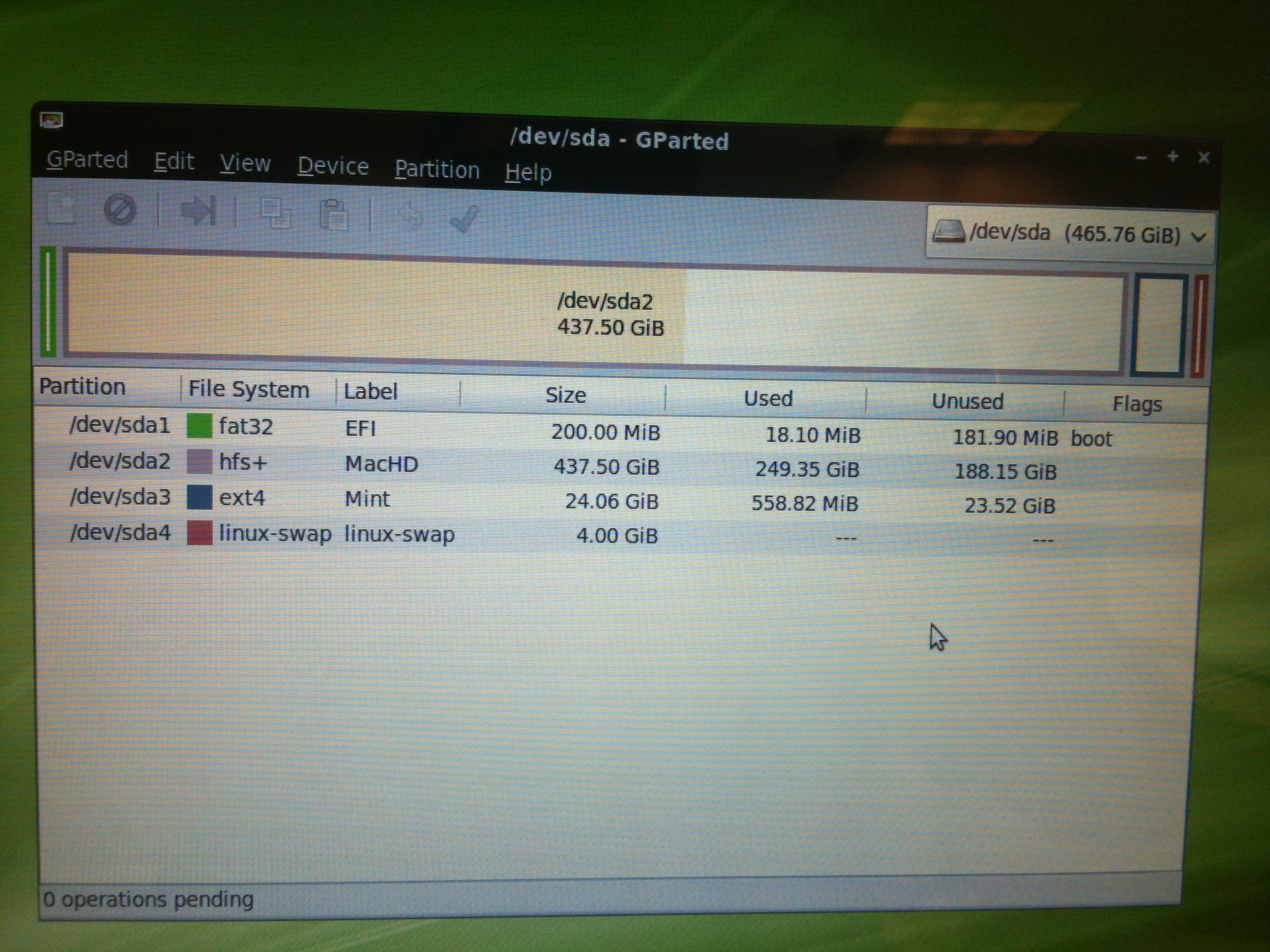
9. Exit GParted and double-click the “Install Linux Mint” icon to begin the installation process. Follow the instructions until you get to Step 4.
10. When you get to Step 4, choose “Specify Partitions Manually.” Proceed to Step 5.
11. Step 5, Specifying partitions.
a. Select /dev/sda3 and press “Change…”
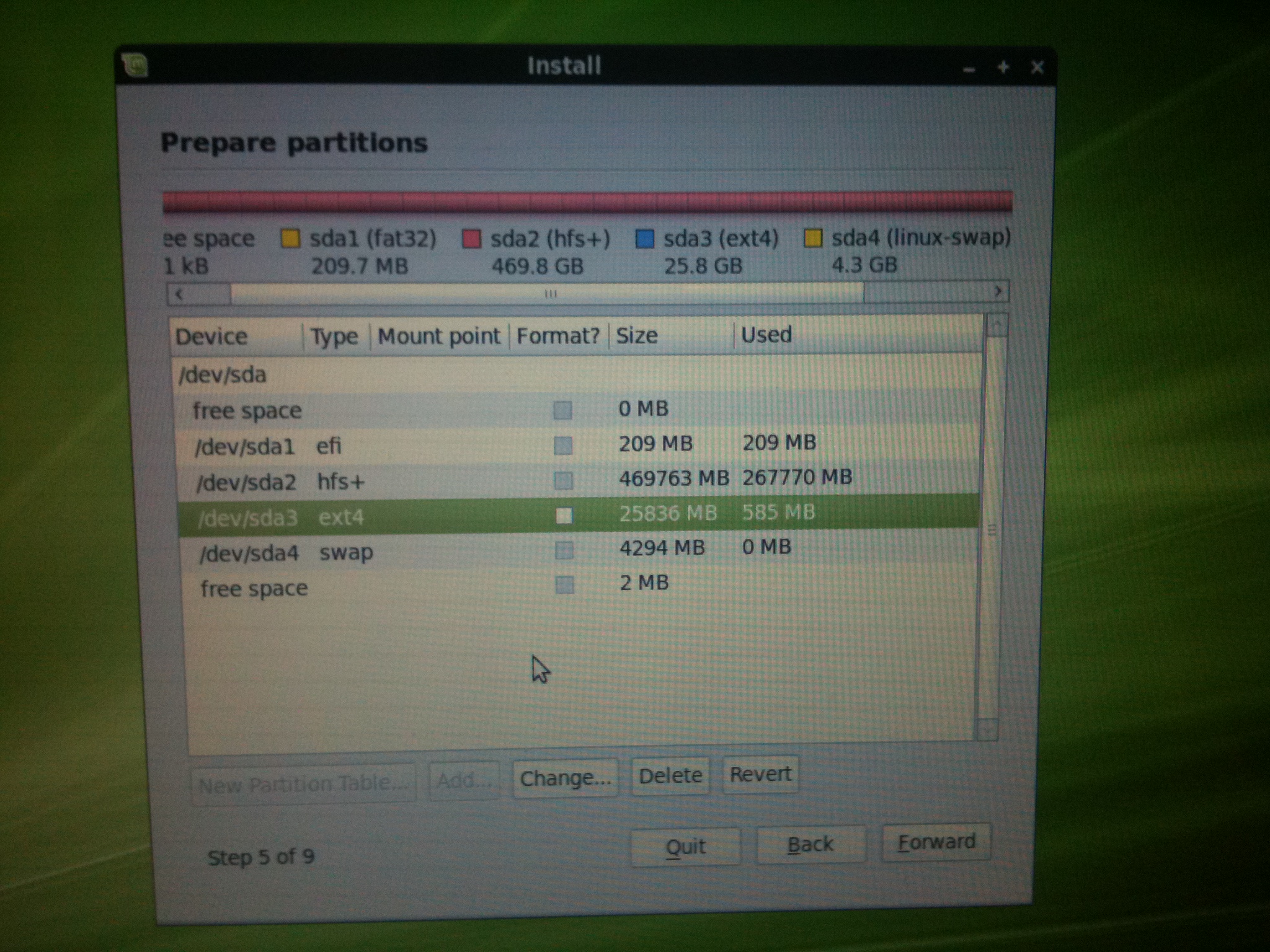
b. Choose ext4 Journaling; CHECK the “Format” box; mount at /
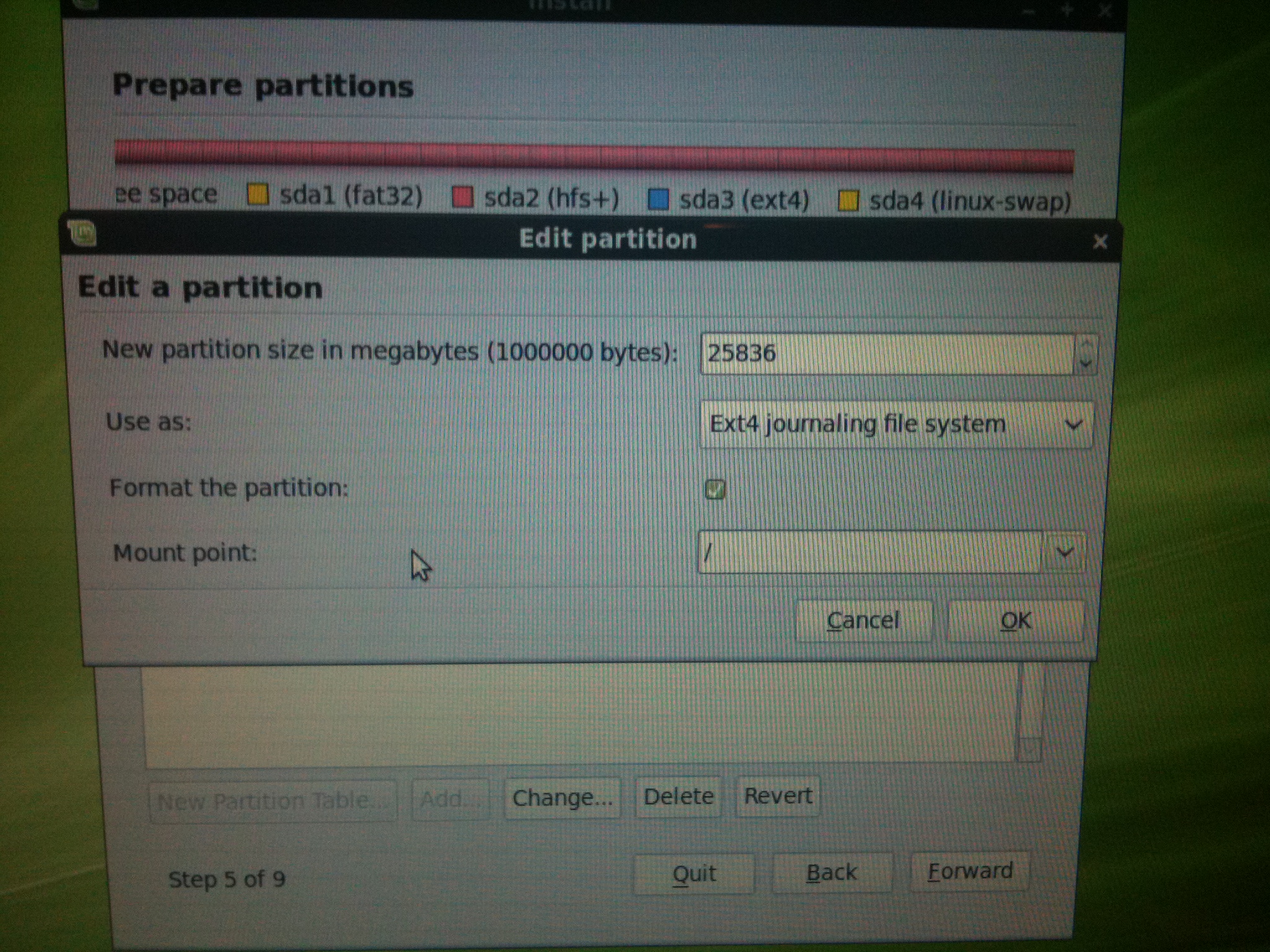
c. No change to Swap

d. Proceed with installation until you get to Step 8.
12. At Step 8, click “Advanced…” and choose to install boot loader at /dev/sda3.
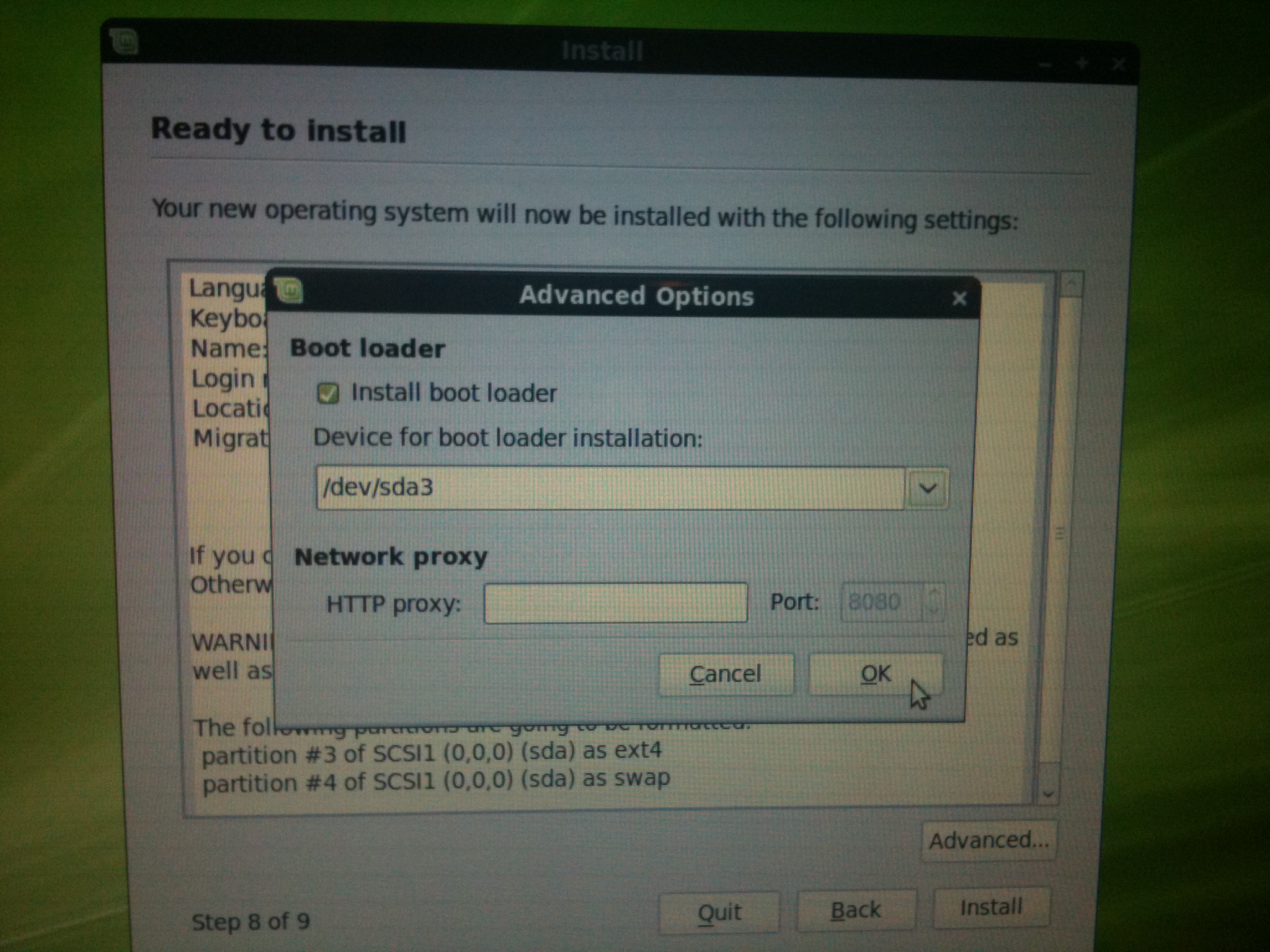
13. Proceed with the installation! When installation is complete DO NOT hit “Restart.” Instead click on “Continue Testing.” Then in the Menu click quit, then click restart.
14. Upon restart, rEFIt should load.
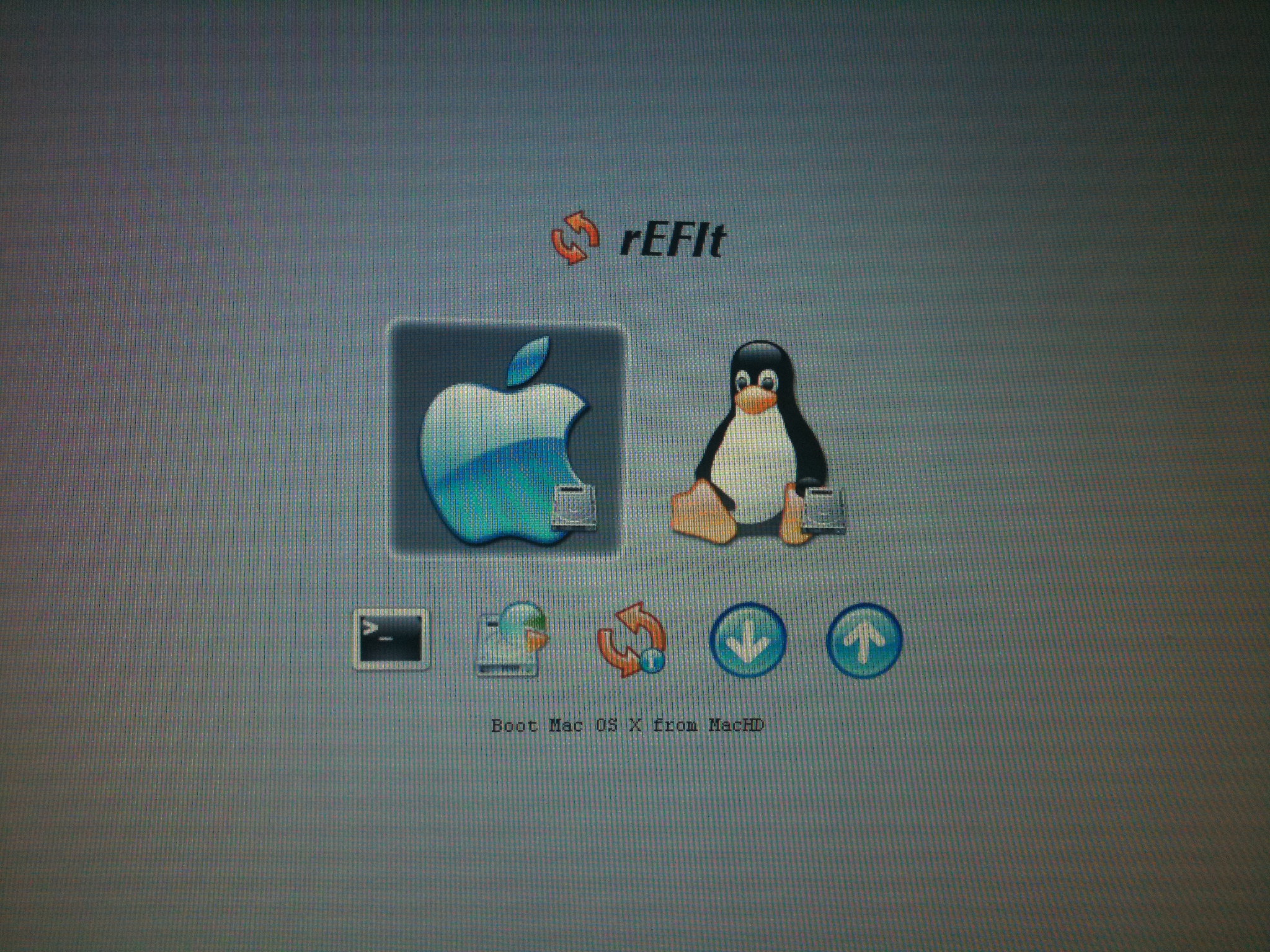
15. Use the down arrow key to launch the partition tool. When I did this, the partitions were already in Sync and there was no need for rEFIt to Synchronize! Sweet!

16. When I chose Linux from rEFIt it did NOT start up. I had to power down by holding the Power button. I then restarted and held down the OPTION key. I chose “Windows” and Linux Mint booted up. I restarted, launched Linux from rEFIt and it worked. I don’t know why it did not boot the first time. Just wanted to point this out in case someone had a similar experience. I also noticed that the Linux Mint Logo was no present but the five white/green buttons were there. No problem though, it loads fine.
17. Install your hardware drivers. Reboot. Update your system and you are good to go. You now have a fully functional MacBook Pro dual-booting Mac OS X and Linux Mint 9!
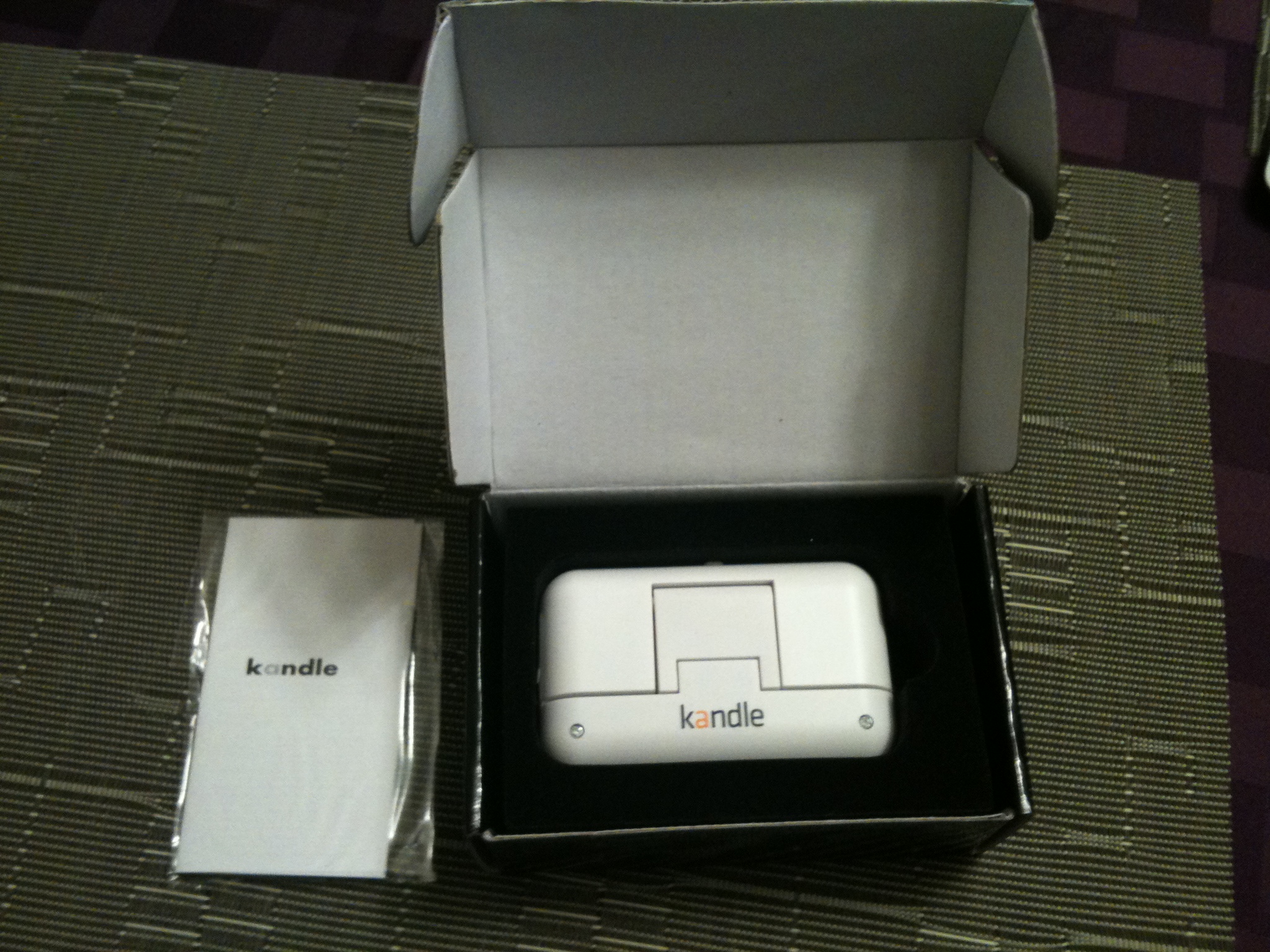
Got my Kandle in the mail today. This is a nice reading light for the nook. It has gotten rave reviews on Amazon from Kindle owners. Consider me a happy Kandle/nook owner.
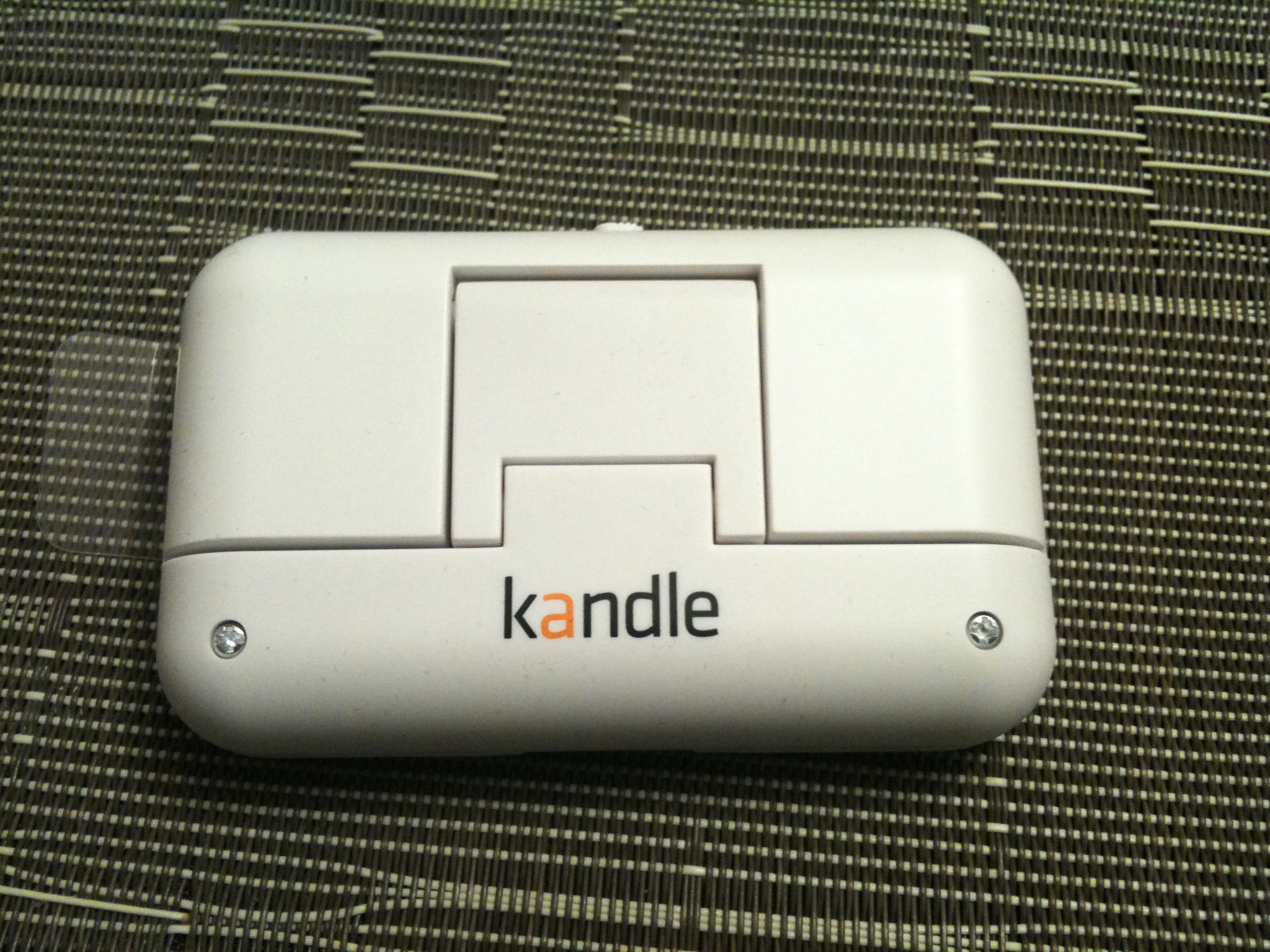
The Kandle is small and light. It comes with batteries (CR2302) pre-installed and comes with an EXTRA set in the box; a very nice touch.
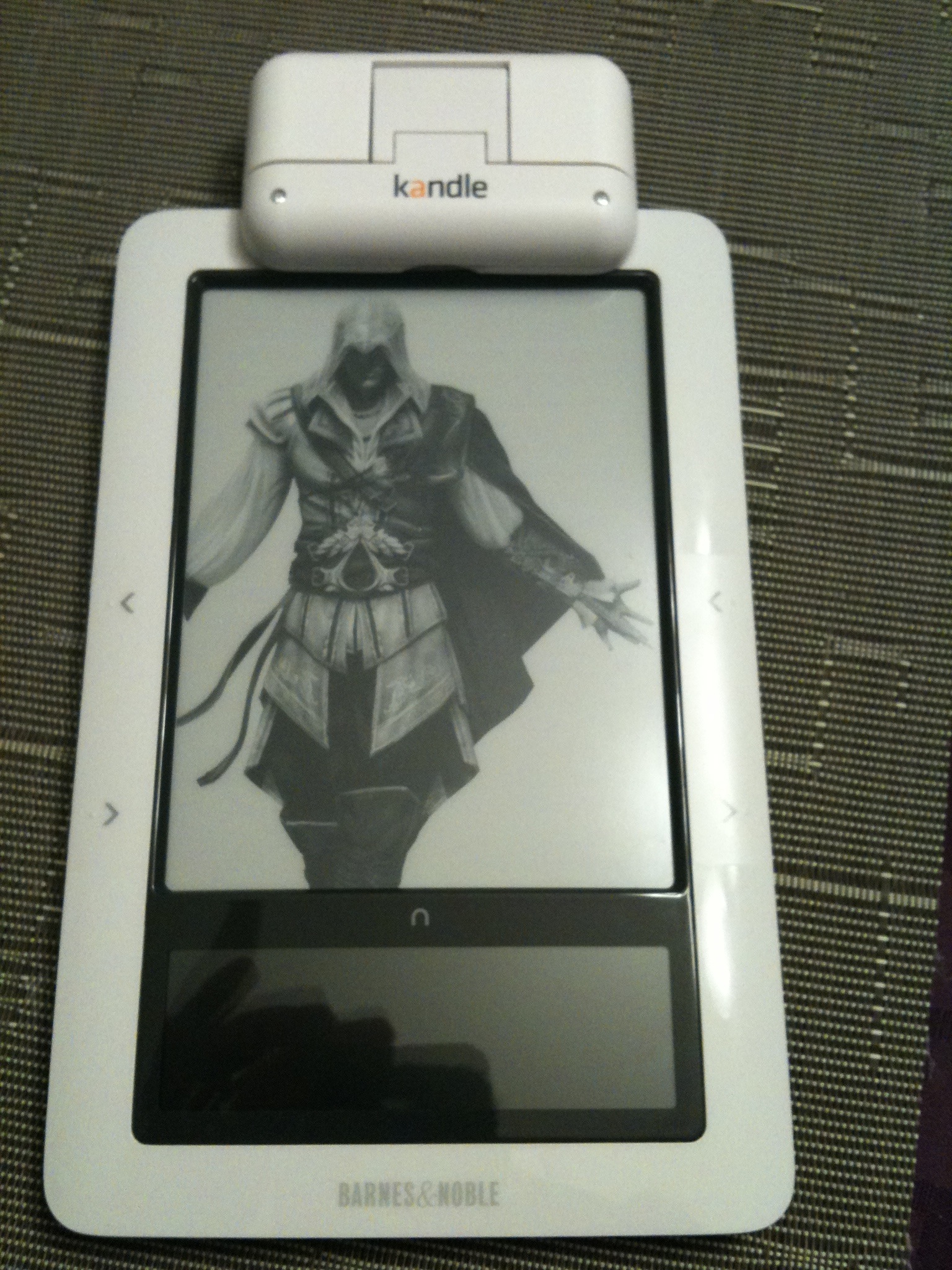
The Kandle fits securely on the nook and will not fall off with gentle shaking. It will fly off if you shake it hard but I don’t foresee any violent shaking of my reading device while reading.
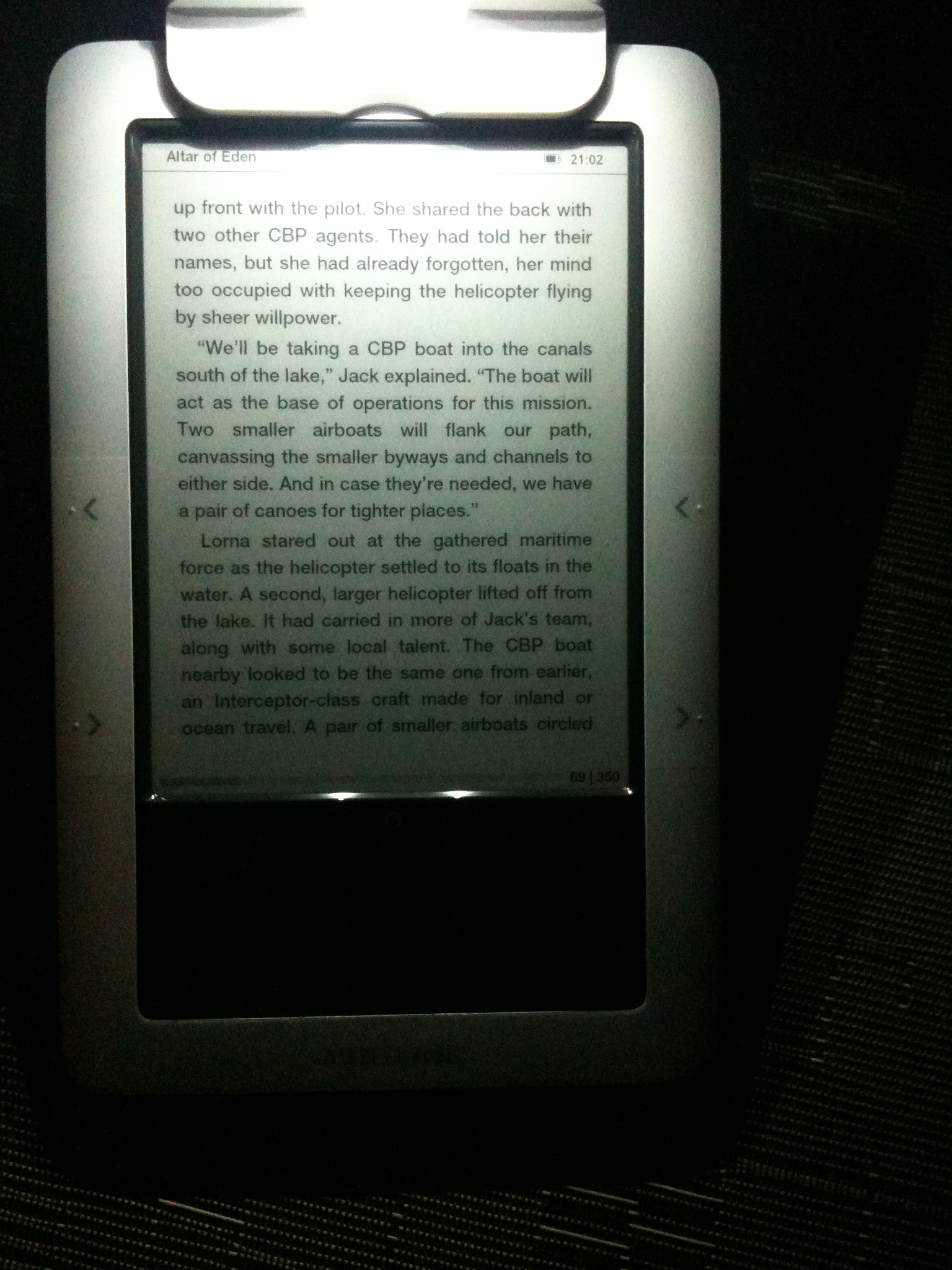
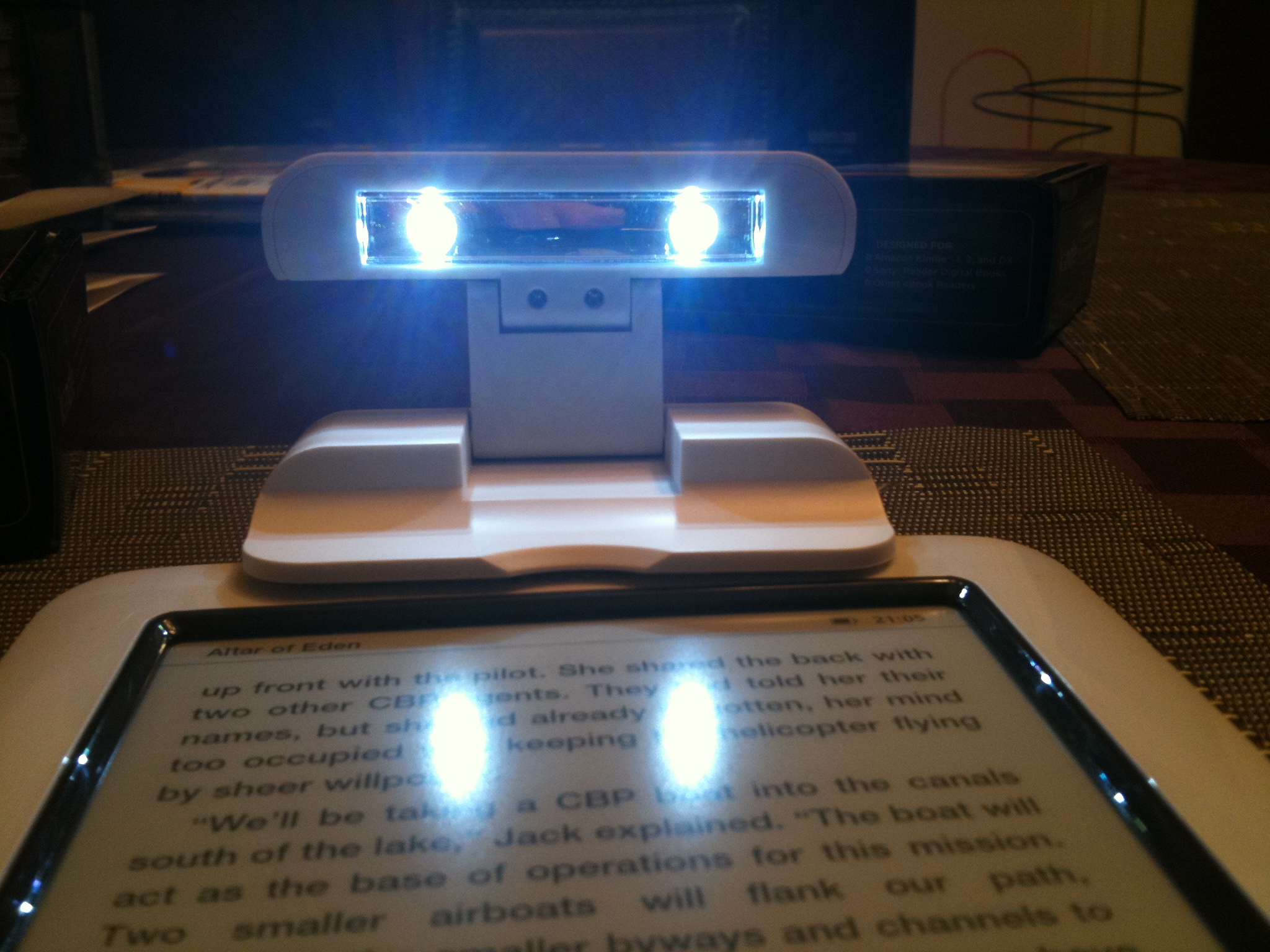
The Kandle provides more than enough light to read in complete darkness. The two rotating arms allow you to customize the angle of the light to eliminate glare.
What more can I say. It’s great.
The box and my nook (to show scale):

Opening the box:
Kandle closed:
Attached to the nook:
Side View:

From the back:
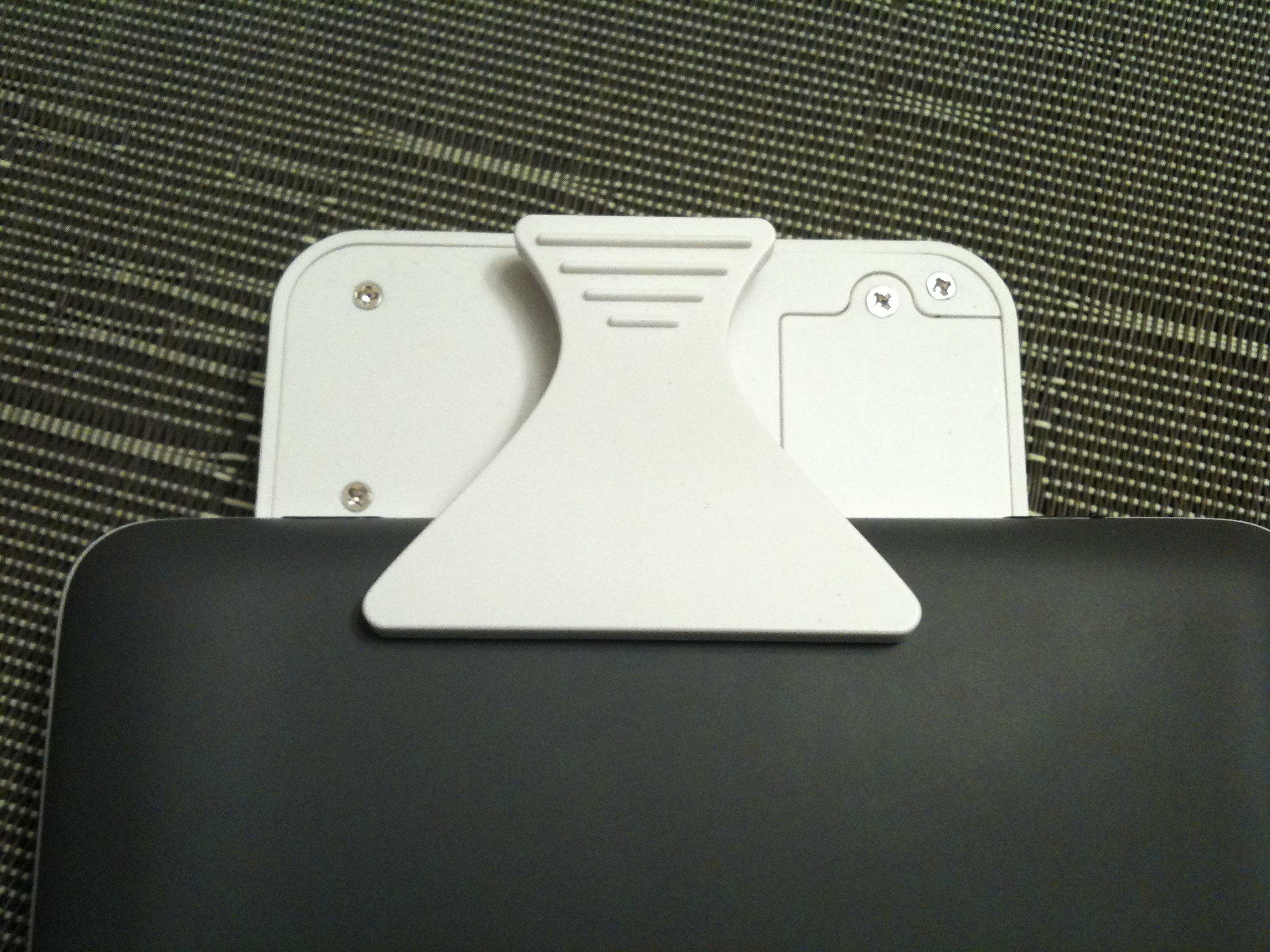
Arm open (the arm can open to 90 degrees):

Total darkness; light on. This picture does not do it justice. The picture has a lot more glare than what is truly observed in real life:
From the bottom; light on:
Spare batteries and instructions:

On Monday, 21 December 2009 Barnes & Noble began deploying the greatly anticipated version 1.1.0 update to the nook. After my update downloaded, I posted screen shots of the update process. This is my follow-up post after having used it for about 24 hours.
Summary:
Improved:
- Page turns are faster; now equivalent to Kindle 2.
- Home button response is much faster.
- Swipe-to-turn pages works VERY well!
No Change:
- 24-hour time still not displaying in The Daily
- “Formatting…” Still comes up when opening books; even the book you are currently reading
- Cover flow is slightly smoother but there is still a lot of lag.
- No way to delete the stupid & childish “Your Nook” by Dave Barry (located in The Daily)
Worse:
- D-pad response in Look Up appears broken. Does not follow commands properly.
- Highlighting a paragraph is difficult due to D-pad lag and unresponsiveness.
- Notes properly submitted cannot be viewed unless you choose to edit.
Suggested UI Improvements:
- Disable Home Button when the keyboard is displayed.
- Intuitive D-Pad Behavior.
- Descriptive Titles for Bookmarks.
- Export highlights, notes and bookmarks.
—————————————————————————————————
The nook is the sexy, yet aloof man/woman you can’t keep your eyes or hands off of but seldom treats you the way you deserve to be treated. Don’t get me wrong, I really like my nook; but I don’t love it, yet. Reading on the nook is a joy, just as it was on the Kindle. However, in their current versions the Kindle is the superior machine even with its kludgy interface. This is because when it comes to the “gee-whiz” stuff, the Kindle does what it says it will do and does so immediately, even if it is somewhat awkward. The nook takes its own sweet time following your commands and often does not follow your commands to the letter. This provides for a frustrating user experience. I like the nook’s customization options and feel it really has a lot of potential. Until the nook gets the basics down, it is going to continue to be the also-ran of eReaders. I write this as a coach or teacher trying to help an athlete or student live up to his or her true potential.
Improved:
- Page Turning: Page turning is MUCH faster. Before, when turning a page I had to wait for the page to refresh before I could continue reading. Now, by the time my eyes shift from the bottom of the page to the top, the page has refreshed and I can continue reading in a very smooth process. It’s now faster than reading a paper book and just as fast as the Kindle 2.
- Home Button: Pressing the home button provides an immediate response. This is a welcome change to v1.0 which took close to a second to register.
- Swipe-to-turn (STT): STT has vastly improved. This feature is awesome and I absolutely love it. Under v1.0 I could not get STT to save my life. Under v1.1 it works like a champ. I don’t know if the improvement is due to the update, me learning the proper method, or a combination of the two. However, here is the secret: on page 59 of the nook user manual it clearly states in italicized text “Touch a spot on the touchscreen with your finger already moving sideways.” I was erroneously touching and swiping, which was incorrect. Your finger tip should basically do a “touch-and-go” similar to what pilots do when practicing repeated takeoffs and landings. Your finger is in motion moving sideways, comes down, slides across the touchscreen, and lifts off. Using this method under v1.1 I’ve had a 100% success rate. The manual states that the slide can cover as little as 3/4 of an inch. In my experience this is accurate. It doesn’t matter where you do this on the touchscreen and your swipe does not have to be perfectly horizontal. Right-to-Left turns to the next page; Left-to-Right turns to the previous page (just like with a real book).
No Change:
- 24-hour time still not in The Daily: Obviously not a major issue but if BN gives the user a preference, that preference should be reflected globally. Hopefully v1.2 will fix it.
- Formatting: The “Formatting…” message still appears when opening a book you have opened previously. Yes, this only takes a few seconds but it is akin to slow-loading webpage. When I press a button on a digital device I expect immediate action, especially for something as simple as loading a text file which was previously formatted the last time I opened the book. I would accept the “Formatting…” message under two circumstances: 1. I’ve never opened the book before and 2. I changed the font in display preferences.
- Coverflow: Coverflow is not as choppy as it was under v1.0 but there is still significant lag between swiping my finger and the covers moving. The covers don’t move with my finger, they follow my finger as if a rubber band were attached between my finger and the covers. After my finger has moved about 1/2 an inch, the covers follow. Obviously, the Kindle does not have a touchscreen but my iPhone does. My iPhone tracks my finger perfectly as do many Android powered touchscreen cellphones. I know it is possible. BN really, really needs to fix this.
- Dave Barry’s “Your Nook”: There is still no way to delete this piece of garbage from The Daily. I have no desire to read it again. Unfortunately, this was the very first thing I read on my nook. It neither made me laugh nor bestowed any confidence in B&N. The article along with the “pocket” dictionary, communicates a lack of professionalism and seriousness about the product. Hopefully in the very near future users will be able to determine the feeds in The Daily and BN will see fit to provide a dictionary suitable for READERS.
Worse:
- D-pad response: Aggravating slow and unpredictable is how I would describe the responsiveness of the D-pad. I hated the Kindle’s joystick but the nook’s D-pad is supremely worse. It actually got worse after the update. It is extremely slow to respond: tap, wait, wait, check to make sure it went the right direction, repeat. It’s actually a lot faster to look up the word on my iphone BY TYPING IT.
- Highlighting: Also related to the D-pad. Slow, unpredictable and frustrating. You can’t highlight (accurately) across multiple pages. If you want to highlight something at the bottom of the page, one would assume you could press the “up” arrow to go from the top to the bottom, unfortunately this is not the case. You must tap all. the. way. down. ugh!
- Notes: Notes properly submitted cannot be viewed unless you choose to edit. What a pain in the rear. After getting through the process of highlighting a section, typing a note, and hitting submit I cannot view my notes on the screen. I must choose to EDIT them if I want to view them. This is contradictory to what both the manual and the touchscreen are telling me.
Suggested UI Improvements:
- Disable Home Button when the keyboard is displayed. When the keyboard is displayed, the nook “home” button should be disabled. When typing quickly, it is too easy to press the home button instead of T, Y, or U (blame it on my fat fingers). The home button should be re-enabled after the user presses “Submit” or “Cancel.”
- Intuitive D-Pad Behavior. When in the D-pad is present, pressing the “up” arrow should take you to the bottom of the page. Once I’ve begun my selection, the highlight should continue to the next page. Normal behavior, really.
- Descriptive Titles for Bookmarks. I’ve been bookmarking key entries in the user manual. This is an example of the Title of one of my booksmrks: 14,OEBPS/13_reading.xhtml#point(/1/4/2/2/110/2/2/2/… W T F?!! Does anybody who is reading this have any clue whatsoever what this bookmark refers to? Of course you don’t. I made the bookmark and I don’t even know what it is pointing to. Clearly it is reference point for the operating system. However, I am not the operating system. I am the user. I need the bookmark to read “Key to making swipe-to-turn work” or some other human recognizeable text indicating where this bookmark is going to take me.
- Export highlights, notes, and bookmarks. The whole point of making highlights and notes is to add commentary or thoughts to what you are reading in context. The assumption is that you will use your notes for something else (homework, a blog entry, a review, etc.). If I’ve typed them once I don’t want to type them again. I surely don’t want to have to go through every note and highlight using the D-pad (in its current form) to go back and transcribe all of my notes to another medium. I’m sure all of this is located in an XHTML file somewhere on the nook. We just need an easy way to access it.
Comments are welcome! I’d love to hear your thoughts!
Summary:
- You can’t “force” the download. You’ll get it when you get it. It appears the update is being deployed to the nook population in waves.
- Let the update do its thing. Takes about 5 minutes.
- Pictures below.
- Have not tested yet. Will post more after I’ve had time to play with it.
Downloading Update (Lower right corner of screen):
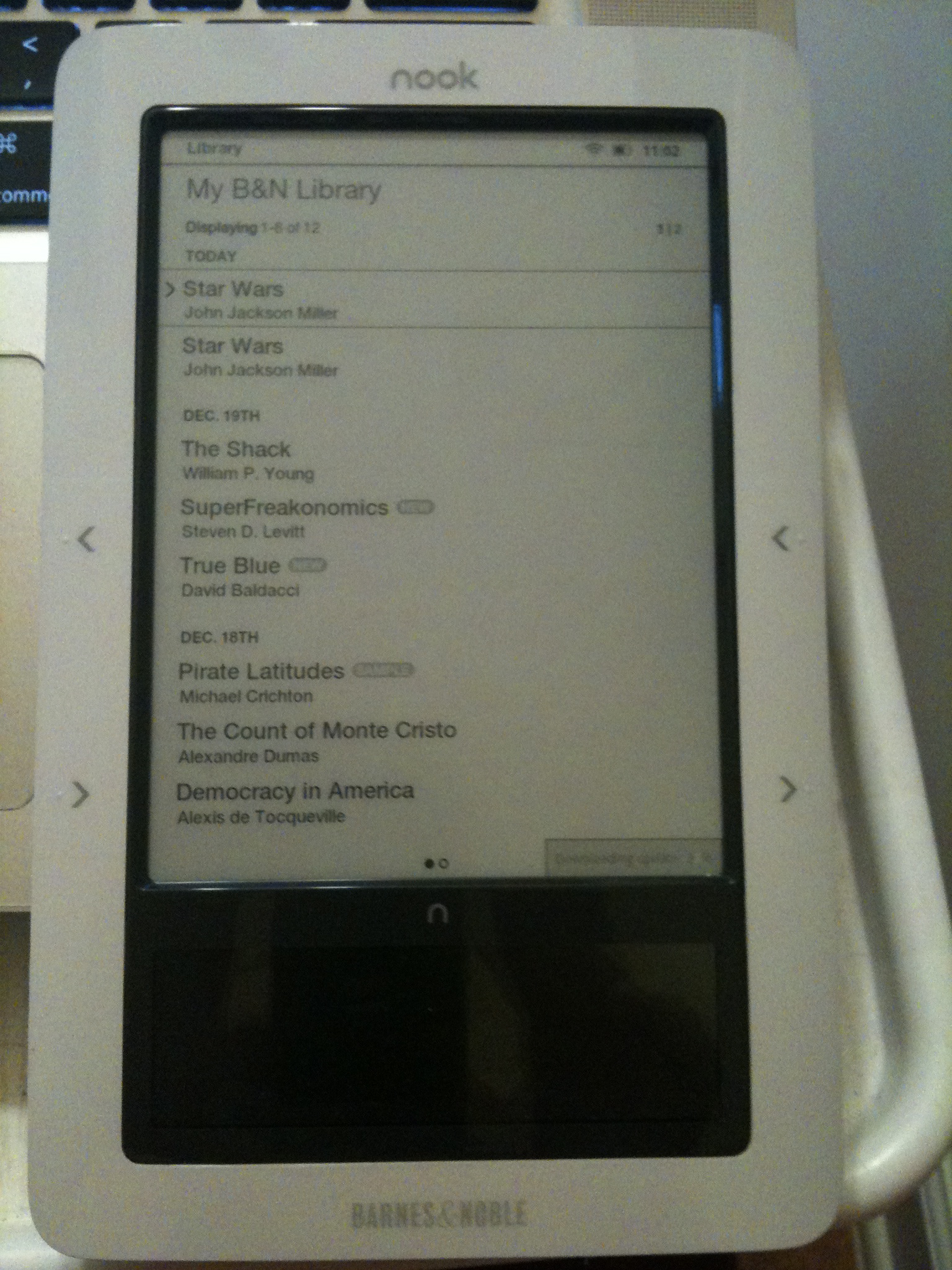
Preparing Update:

Installing Update:
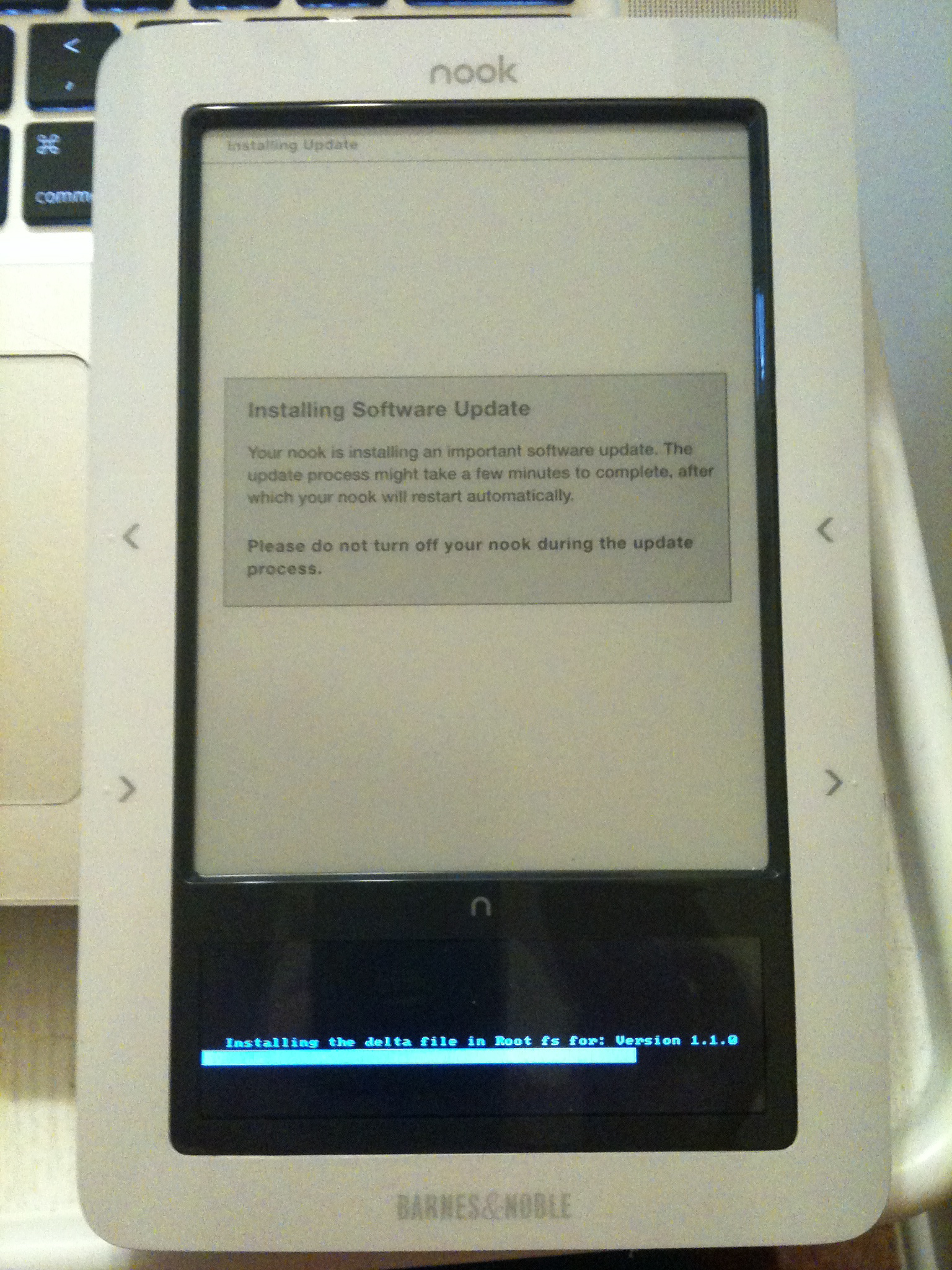
Restart:

Summary:
- The nook is a version 1.0 gadget; it’s not perfect and is not a Kindle killer (yet).
- Page-turning and interface speed is slow compared to the Kindle and very slow compared to the iPhone.
- Adding your own screensavers and wallpapers is easy and provides a great way to customize your device.
- Ability to change the font is awesome. My personal favorite is Helvetica neue.
- Sub-par dictionary for a device intended for reading by adults.
Background: My wife bought me a Kindle 2 for my birthday. About two days later the nook was announced. I purchased Dan Brown’s The Lost Symbol and read the entire book on the Kindle. I really did not like the user interface. It felt very kludgy to me. I returned it and pre-ordered a nook. I thought the touch screen and virtual keyboard would be a much better way to navigate than the Kindle’s joystick and dedicated keyboard.
My nook arrived today. I’ve used it for about eight hours now. Below are my initial thoughts.
Packaging: Very nice; apple-like. Packaging requires instructions to remove (seriously) and are included.
Screen: Just like the Kindle 2. Clear, crisp, easy to read.
Software version: 1.0.0 (no update available yet)
Page-turning: Slower than the Kindle; it’s noticeable too. I like the page-turning buttons on the nook better.
Size: The nook is smaller (height and width) than the Kindle but slightly thicker. I actually prefer the extra thickness as it is easier to hold in your hand.
Touch Screen: If you are an iPhone user like me, you are going to be disappointed. The touch screen has a significant flash-to-bang lag. I am hoping that a software update will fix it. Neither my wife, nor I have been able to get the “swipe to turn the page” feature to work.
User Manual: I had some trouble finding the user manual on the nook. It is there but it is not in your Library. It’s in your “My Documents” folder along with the nook tour.
Fonts: You can change the font of EVERYTHING. It is nice to read in Helvetica neue!
Dictionary: Merriam Webster’s POCKET dictionary (40,000 words). WTF? A Junior High School dictionary for an adult reading device. The Kindle gives you The New Oxford American Dictionary (250,000 words). Also, you can’t access the dictionary directly. It is not in my library nor my documents. If it resides somewhere else, please let me know. Looking up a word beyond the third grade level will result with “Definition not found.” Definitions for words such as newspapers, logo, resolution, Americans, and Republicans were not found by the dictionary. Interestingly enough, a definition for Democrat was found.
Time: You can select 12-hour or 24-hour time. I prefer 24-hour time and set my nook accordingly. Unfortunately, “The Daily” still shows the time in 12-hour time with AM/PM.
Storage: Of the 2GB on board, only 1.3GB is available for storage. I purchased an 8GB Class 6 microSDHC card on amazon for $21.39. It’s not a “name-brand” but I can attest that it works very well and transfer speeds are fast! I’ve included the link if you’re interested.
Screensavers: Screensavers should be 600×800. Screensavers go into the “My Screensavers” folder. Screensaver images MUST reside in a sub-folder. For example, you just can’t drop a bunch of pictures of your kids into the screensavers folder; you must create a sub-folder (I called mine “kids” and dropped the images into the subfolder). /nook/my screensavers/kids/(images here).
Wallpapers: Wallpapers should be 600×760 (accounts for the status bar on top). If you use a 600×800 wallpaper, it will scale down and you’ll get black bars on the sides. Loading them is very easy. Just drag and drop to the “My Wallpapers” folder. No need to use sub-folders here. Also, you do NOT need to change your color images to black and white. Use your color images and the nook will display them in 16 shades of gray.
Calibre: Using the donationware program Calibre (http://calibre-ebook.com/) I downloaded CNN for today and it was installed to “My Documents.” Works great and is a nice way to get news onto the nook. As of version 0.6.27, Calibre supports the nook but it shows up as a Sony eReader. I’m hoping a future update to Calibre will fix it.
Two nooks, one account: We are now a two nook family. The lending feature seemed gimmicky to me so we decided to link both of our nooks to one account. I actually created a new gmail account and set up filters to forward anything sent to both of our email addresses. The nook does NOT have “Whispersync” like the Kindle. So, we can both read the same book simultaneously and not have to worry about reading at the same pace.
I’ll update as I spend more time with my nook. Post questions in the comments and I’ll do my best to answer them.
Thoughts on President Obama and the Nobel Peace Prize
Posted: 2009-10-10 in PoliticsTags: politics, POTUS, Thoughts
Today, our President won the Nobel Peace Prize. Upon first hearing the news I thought “what for?” Many people were asking the same question. However, as the day went on the tone of the question changed. It has become partisan.
Supporters of Pres. Obama often argue that he won it for not being Pres. Bush and seriously putting forth a policy of diplomatic engagement with countries who are not our allies. His detractors argue that he has won it for making good speeches and/or being popular with “socialist” Europeans. All of the vitriol aside, both may be correct. However, I think it is President Obama himself who called it correctly. It IS a call to action. The United States is the only country on the planet with the ability to act unilaterally (militarily) anywhere on the globe. Our power projection capability is unmatched. There is little another nation or group of nations could do to stop us. If you are not the United States, how do you temper “the beast?” You temper the beast through engagement. Giving President Obama the Nobel Peace Prize before he has “earned” it is a brilliant manuever. President Obama wants to earn it. I’m not saying he will place earning the prize above US national interests. But the desire to earn it may be enough to push him towards peace during a critical time when everyone around him will be clamoring for war or disengagement. Specifically, in the not too distant future, bombing the uranium enrichment facility near Qum, Iran could be a decision he will have to make. Secondly, he may need to persuade Israel not to bomb the facility. The possibilities are endless. My point here is that the prize adds another voice in his head to push for peace. I think he will earn it. It will take time and it will be difficult but diplomacy always does. One final point here. Regardless of whether you think he deserves it or not, he didn’t nominate himself for it, nor did he campaign for it. So let’s stop berating him for it. Instead, let us help him earn it through reasoned, unemotional, and non-partisan public discourse.
Spent the morning at the park with my boys. Great weather. Doesn’t get any better than this!

File posted to Posterous via Dropbox Automator action. The process was created by Victor Cajiao and George Starcher. The link for the how-to is at http://victorcajiao.posterous.com/how-we-upload-files-from-our-drop-box-folder
 John Atilano